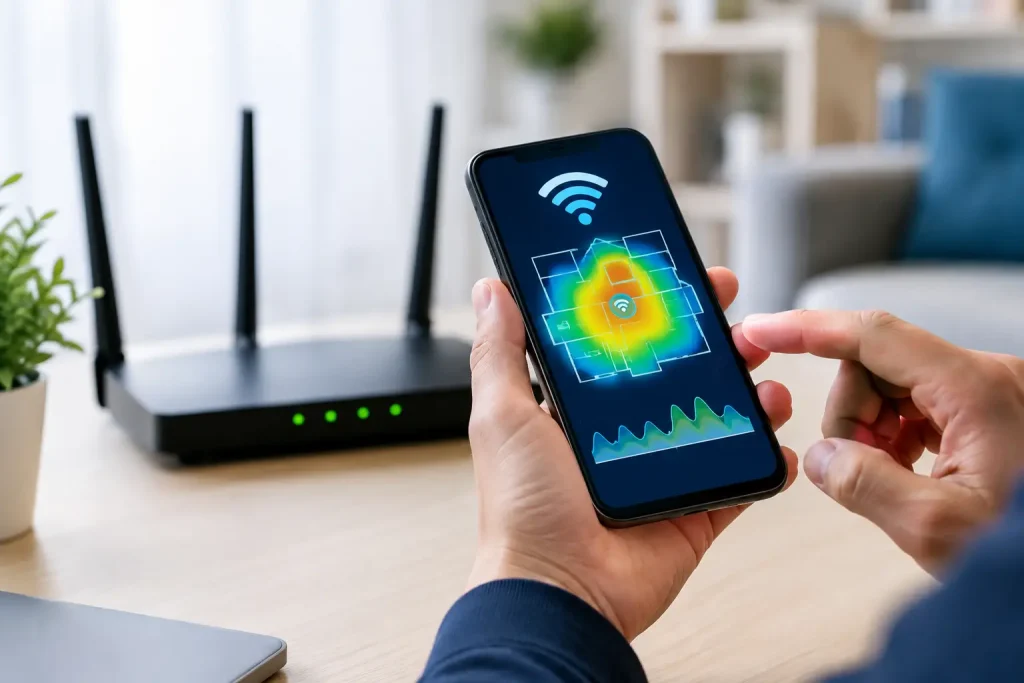
A video call that freezes in one room but works perfectly near the router is usually not a mystery. It is a coverage, interference, or channel problem. The best WiFi analyzer apps show what your wireless network cannot: nearby networks competing for airtime, weak signal areas, and settings that may be holding back speed.
A Wi-Fi analyzer does not replace an internet speed test, ping test, or traceroute. It answers a different question: what is happening between your device and the wireless router or access point? That distinction matters. Your public IP address identifies your connection on the internet, while a Wi-Fi analyzer focuses on the local radio environment inside or near your building.
What a Wi-Fi analyzer app actually measures
Wi-Fi uses shared radio frequencies. Your router broadcasts on channels within the 2.4 GHz, 5 GHz, and sometimes 6 GHz bands. Nearby routers, access points, smart devices, and even non-Wi-Fi equipment can contribute to congestion or interference.
An analyzer scans the networks your device can see and reports details such as network name or SSID, channel, signal strength, security type, frequency band, and channel width. Many tools also graph signal strength over time or display overlapping channel use.
Signal strength is commonly shown in dBm, a negative number. A reading around -40 dBm is very strong, around -67 dBm is generally usable for demanding work, and readings near -80 dBm can produce slow or unreliable connections. These are practical guidelines, not guarantees. Walls, device antennas, channel congestion, and ISP performance still affect the result.
The best WiFi analyzer apps by device and task
There is no single best choice for every network. The right app depends on whether you are standing in a home office with a phone, planning access point placement for a small business, or troubleshooting a laptop connection.
WiFi Analyzer by VREM for Android
WiFi Analyzer by VREM is a practical free option for Android users who need to check channels and signal strength quickly. It presents nearby networks in channel graphs, making it easy to see whether a crowded 2.4 GHz channel is contributing to poor performance.
It is especially useful for apartment buildings and dense neighborhoods, where several routers may be using the same default channel. Android generally provides apps with more Wi-Fi scan data than iOS, so an Android phone can be one of the simplest tools for a fast survey. The interface is technical, but the data is clear once you know what you are looking for.
NetSpot for Windows, Mac, and iPhone
NetSpot is a stronger fit when you need more than a quick scan. Its desktop versions can collect signal information as you move through a space and help create a visual coverage map. That is valuable when a remote-work desk, game console, or smart TV has a weak connection in a specific room.
The trade-off is that its more advanced planning and mapping features may require a paid version. Its iPhone and iPad capabilities are also subject to Apple’s Wi-Fi scanning limits, so do not expect identical data across every platform. For home offices and small businesses that need to document coverage issues, NetSpot is often worth the additional effort.
WiFi Explorer for Mac users
WiFi Explorer is designed for macOS users who want detailed information about surrounding wireless networks. It can show channel use, signal levels, noise, security settings, and network capabilities in a format that is useful for troubleshooting and basic site surveys.
This is not the simplest choice for someone who only wants to find a better channel. It is a better match for Mac-based IT staff, technically capable home users, and administrators who need to compare multiple access points. Its focus on detailed wireless information is its advantage, but that same depth can feel excessive for a one-time fix.
Acrylic Wi-Fi for Windows
Acrylic Wi-Fi is a Windows-based analyzer suited to users who need a closer look at nearby access points. It can identify channels, signal strength, security settings, and other network characteristics that help diagnose local wireless problems.
Its free edition is useful for routine scanning, while advanced features are aimed more at professional troubleshooting. If your Windows laptop is the device that has the problem, analyzing from that laptop is often more useful than scanning from a phone in another location. You are measuring the environment seen by the affected device.
WiFiman for home and UniFi networks
WiFiman is a useful mobile app for Android and iPhone users who want network discovery and basic connection diagnostics in one place. It is especially convenient for households or small businesses using Ubiquiti UniFi equipment, where it can provide additional context about the local network.
The app remains useful without a UniFi setup, but some of its most helpful features are tied to compatible hardware. Think of it as a broader network companion rather than a dedicated spectrum-analysis tool. It can help identify devices and test local conditions, while a desktop analyzer may be better for detailed channel planning.
AirPort Utility Wi-Fi Scanner for iPhone and iPad
Apple’s AirPort Utility includes a Wi-Fi scanner that can be enabled in the iPhone or iPad Settings app. Once activated, it can scan for nearby networks and report their channels and signal levels.
It is a solid no-cost choice for iOS users who only need basic channel visibility. However, Apple limits how much low-level Wi-Fi data third-party apps can access. That is why an iPhone analyzer may not offer the channel graphs, signal history, or detailed radio information available on Android, Windows, or macOS.
How to use a Wi-Fi analyzer app to fix a problem
Start in the location where the problem occurs, not beside the router. Run a scan there, then compare the results with a scan a few feet from the router. If the signal is strong near the router and weak in the problem area, coverage is the likely issue. Moving the router to a more central, elevated position may help, but a mesh node or wired access point may be the more reliable answer for a larger home.
Next, look at the band in use. The 2.4 GHz band travels farther and penetrates walls better, but it has limited non-overlapping channel choices in the US: 1, 6, and 11. If nearby networks crowd the same channel, select the least congested of those three. Avoid arbitrary channels such as 3 or 8, which overlap with adjacent networks and can make interference worse.
The 5 GHz band usually offers more channel options and higher potential throughput, but it has shorter range. A device in the next room may perform better on 5 GHz, while a device at the far end of a house may need 2.4 GHz or an additional access point. Wi-Fi 6E and Wi-Fi 7 equipment can also use 6 GHz, which is often less congested but has even shorter effective range.
Then check channel width. A wider 80 MHz channel can improve peak speed when the airwaves are clear, but it occupies more spectrum. In a crowded apartment building, using a narrower channel may deliver more stable real-world performance. Automatic channel selection is often effective, but an analyzer gives you evidence when the router repeatedly chooses a poor option.
After changing a router setting, test from the same device and location. Check Wi-Fi signal, then run an internet speed test and ping test. If Wi-Fi signal is strong but speed and latency remain poor across wired and wireless devices, the issue may be with the ISP, modem, router performance, or the path beyond your home network rather than the Wi-Fi channel.
Limits to keep in mind
A Wi-Fi analyzer can see broadcast networks, but it cannot prove that a neighbor’s network is causing every problem. Bluetooth devices, microwave ovens, building materials, outdated router firmware, and overloaded hardware can all affect wireless performance. A scan is evidence, not a final diagnosis.
It also will not reveal your public IPv4 or IPv6 address, identify an ISP outage, or explain a slow route to a game server. Use the analyzer to improve the local wireless link, then use separate speed, ping, and traceroute tools to investigate the wider connection.
The most useful app is the one you can run where the failure happens. Scan the problem room, make one measured change at a time, and retest from the same device. That simple process turns random Wi-Fi frustration into a network issue you can actually isolate.